How to Import a Pilot Logbook CSV Into LogTen Pro
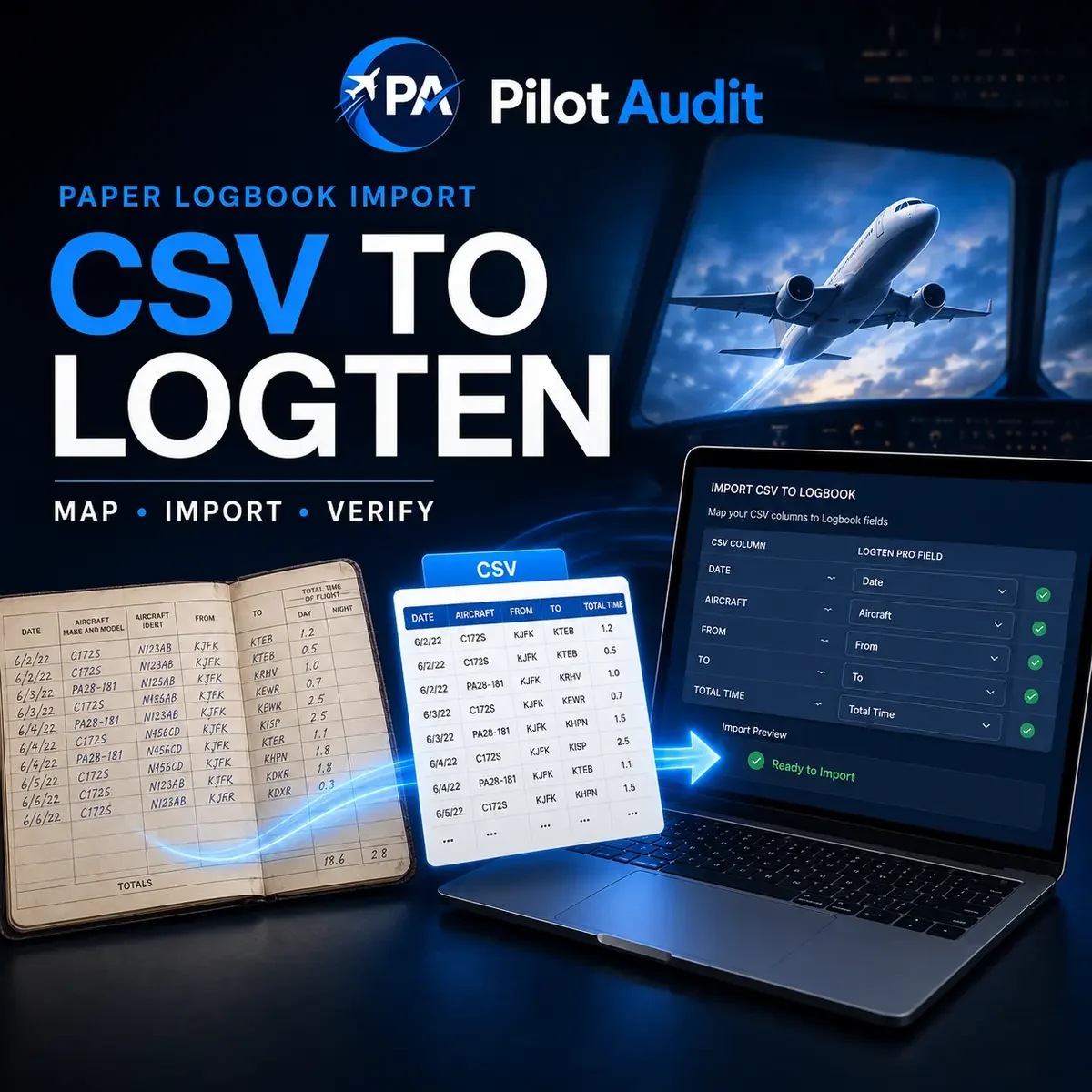
A converted paper pilot logbook CSV can be imported into LogTen Pro on a Mac through File → Import from File… → Flights. The important part is not simply getting LogTen to accept the file. It is making sure every date, tail number, aircraft type, crew name, duty indicator, and flight-time value reaches the correct field.
If you use only an iPhone or iPad, there is no direct standalone CSV upload in the LogTen iOS app. LogTen instead instructs pilots with spreadsheet data to send the file to its import team. Both workflows are covered below.
Every software path, formatting rule, and field label in this guide was checked against LogTen’s current Help Center and official App Store listing on August 24, 2026. Forums and third-party import guides were not used as procedural sources. LogTen’s current website uses both LogTen and LogTen Pro; this article uses LogTen for the app while retaining LogTen Pro where pilots commonly use it in searches.
If your flights are still handwritten, start with PilotAudit’s complete guide to converting a paper pilot logbook to digital. PilotAudit is pilot-owned and works with logbooks maintained under FAA, EASA, UK CAA, TCCA, CASA, and other civil aviation authority frameworks. If you would rather not transcribe and format years of entries yourself, the Professional Paper to Digital Pilot Logbook Conversion can produce a clean spreadsheet with optional formatting for LogTen imports. Unclear information is flagged for the pilot instead of guessed.
LogTen CSV Import: The Short Answer
To import a converted pilot logbook CSV into LogTen on a Mac:
Preserve the original conversion file and create a backup of any flights already in LogTen.
Confirm that the import copy has one flight per row, one data type per column, consistent date and time formats, no blank rows, and no spreadsheet subtotal lines.
Save the import file as CSV UTF-8.
In LogTen for Mac, review your time-zone and airport-identifier preferences, then choose File → Import from File… → Flights.
Map each CSV column to the correct LogTen field.
Select the date format that exactly matches the CSV, ignore the header row, preview several records, and import.
Review the imported flights, aircraft types, places, and totals before treating the migration as complete.
LogTen does not provide direct standalone CSV import inside the iPhone or iPad app. If you only use iOS, follow the separate process later in this guide and send the file to LogTen’s import team.
Before You Import: Protect the Source Record
A large historical import should be reversible and easy to check. Before opening the import screen:
Keep the original paper logbooks. A CSV or electronic logbook does not recreate original handwritten signatures, endorsements, corrections, or other source evidence. PilotAudit’s guide to paper versus digital logbooks for airline interviews explains why the two records often need to be retained together.
Keep an untouched master copy of the converted spreadsheet. Make formatting changes only in a separate import copy.
Record the number of actual flight rows and the date of the first and last flight in the CSV.
Record the totals you expect to verify after import, using the same cutoff date and the same category definitions.
If LogTen already contains flights, note the date range already present so the import does not overlap it.
Then create a current restore point. On Mac, the Backup menu is in the upper-right area of LogTen. On iPhone or iPad, open Logbook → Backup and use the plus button. LogTen explains these restore points in its official in-app backup guide.
Do not substitute a spreadsheet export for this step. LogTen states that its flight spreadsheet export is not a complete database backup and can omit information such as signatures, images, and additional details stored with People or Aircraft records.
How to Format a CSV for LogTen Pro
LogTen’s official spreadsheet-formatting guidance and import instructions emphasize consistent, column-based data. Before importing, check the following items.
If the converted spreadsheet was not prepared for LogTen, download the current XLSX or CSV template from the bottom of LogTen’s spreadsheet-formatting page and use it as the reference structure. Work in a copy so the original transcription remains unchanged.
Use one row for each actual flight
Each data row should represent one flight entry. Remove blank rows, repeated headers, page subtotals, grand-total formulas, and other spreadsheet-only lines. Those are not flights and should not become LogTen entries.
A deliberate balance-forward record is different from a spreadsheet subtotal. Keep it only if it is intended to exist as an actual balance-forward entry in LogTen and can be supported by the source records.
Give each type of information its own column
Dates, registrations, aircraft types, departure points, destinations, flight times, crew names, landings, and remarks should not be combined into one general text field. A separate column lets each value map to the correct LogTen field.
Keep the route separate from remarks. If a single Route column contains several places, LogTen’s import guidance uses hyphens between places and underscores within multi-word place names. If the conversion already has separate departure, destination, and route columns, preserve that structure and map each column to its intended field.
Use one consistent date format
Every populated date cell should follow the same format, such as yyyy-MM-dd or MM/dd/yy. The format chosen in LogTen’s import window must match the CSV exactly.
Do not leave a date cell empty for a row that is meant to be a flight. LogTen warns that empty dates can create blank flight records.
Use one consistent duration format
Choose one supported format for flight-time durations and use it throughout the file. Decimal hours and HH:MM are both practical formats, but they must not be mixed unpredictably within the same time column. If a source column contains minutes rather than decimal hours or hours and minutes, identify that accurately in LogTen’s import options.
Keep clock times separate from the flight date. Clock-time columns also need to match the Mac’s system time format, commonly 2359 or 23:59. Confirm whether Out, Off, On, and In times are recorded in UTC or local time; that choice must be communicated to LogTen or matched to the account settings.
Use stable aircraft and place identifiers
Put the registration or tail number in its own column and the aircraft type in another. LogTen derives category, class, and engine information from the Aircraft Type assigned to the flight, so an accurate type mapping is more important than adding redundant classification columns to the CSV. LogTen recommends ICAO aircraft type designators where available.
For airports and other places, use ICAO identifiers where possible. LogTen’s post-import review guidance notes that IATA codes are not guaranteed to be unique. Consistent place records also matter for functions that depend on coordinates and time zones, including automatic night calculations and local-time handling.
Save the import copy as CSV UTF-8
Even if the working file began as an Excel workbook, save the final import copy as CSV UTF-8. Keep all flights on one worksheet before saving; do not split years or months across separate tabs.
After saving, close and reopen the CSV once to confirm that the dates, identifiers, remarks, and time values still appear as intended.
How to Import a CSV Into LogTen Pro on a Mac
LogTen for Mac provides the direct spreadsheet import workflow. Complete the steps in this order.
1. Review LogTen’s general settings
Open Settings → General and confirm the preferences that affect the incoming data:
Match Dates and Times are UTC to the file. If the dates and Out, Off, On, and In times are local, leave that option unchecked; if they are UTC, enable it.
If the file uses airport names instead of ICAO or IATA codes, set the appropriate Preferred Identifier for Places.
If the file uses crew ID numbers instead of names, set the appropriate Preferred Identifier for People.
These settings do not repair a mixed or ambiguous CSV. They tell LogTen how to interpret data that has already been prepared consistently.
2. Open the flight importer
Choose File → Import from File…, select the CSV, and choose Flights as the type of data being imported.
This is a flight-log import, not an airline schedule import. Using the wrong import function can expose different fields and assumptions.
3. Map each source column deliberately
LogTen will show the source columns and let you assign a destination field. Map only values that have a genuine equivalent. Leave an uncertain column unmapped until you can verify what it represents.
Inspect these mappings twice:
Registration or tail number should map to Aircraft → Aircraft ID.
Aircraft type or model code should map to Aircraft Type → Type.
Flight date should map to the flight’s date field.
Total Time, PIC, SIC, night, cross-country, instrument, dual, and other durations should each map to the corresponding time field only when the source definition matches.
Departure, destination, and route should map to their respective place or route fields rather than Remarks.
The PIC-related fields deserve extra attention because similar labels serve different purposes in LogTen:
PIC/P1 Crew stores the name of the pilot acting as PIC or P1.
PIC/P1 is a duty indicator.
PIC (P1) stores the duration logged as PIC or P1 time.
Do not map a PIC name, a duty flag, and PIC flight time to one another simply because the labels look similar. The same principle applies to any field whose wording is familiar but whose function is different.
If the CSV contains structured approach data, LogTen expects the approach count, type, runway, and place in one cell separated by semicolons, such as 1;VOR;10L;KPDX. Keep empty positions when the source lacks one component—for example, ;VOR;;KPDX. Do not invent missing approach details merely to complete the pattern.
4. Set the import options
Before importing:
Choose the date pattern that matches the CSV exactly.
Enable Ignore first row if the first row contains column headings.
Select the minutes option only if the relevant flight-time values are actually expressed in minutes.
Confirm any UTC or local-time choice against the source file.
Review Auto fill times and landings, duty auto-fill, and any defaults used when a field is blank. For a historical import, leave them disabled unless the configured value is genuinely correct for every entry to which it will be applied.
Do not choose an option because the preview “looks close.” The selected format must describe the source data correctly.
5. Preview more than the first flight
Use the preview controls to inspect several rows from different parts of the CSV. Include at least:
The first flight
A flight with PIC or SIC time
A flight with multiple time categories
A flight with a longer route or remark
A flight near the end of the file
Confirm that dates, registrations, types, routes, crew, and time values land in the intended fields. A clean first row does not prove that later rows use the same formatting.
6. Import the flights
When the preview and mappings are correct, run the import. LogTen says account syncing is automatic and continuous while a device is online. Check the Sync menu and let the imported records finish syncing before editing them on another device.
If the result is materially wrong, stop. Do not repeatedly re-import revised copies over the same date range. Restore the pre-import backup or remove the failed import in a controlled way before trying again, or duplicates may become a second problem.
Can You Import a CSV Into LogTen on iPhone or iPad?
No. The iOS app does not provide direct standalone CSV import. LogTen’s spreadsheet import instructions direct iOS users with a spreadsheet to its Data Team. Its separate iOS import guidance explains that imports performed within the iOS app currently depend on supported third-party apps using LogTen’s API.
LogTen’s current official App Store listing directs old-logbook imports to imports@logten.com. Send the prepared file and include:
Whether the Out, Off, On, and In times in the file are UTC or local
Whether the LogTen account already contains flight entries
If the account already has flights, identify the imported date range clearly and check for overlap before sending the file. Keep the original paper records and the untouched conversion file while the import is being completed.
Do not follow an old or third-party guide that claims a normal CSV can be uploaded directly from the current iPhone or iPad app. LogTen does support certain third-party API-based import tools, but that is a different workflow from importing a converted paper-logbook CSV.
How to Verify a LogTen CSV Import
An import is not complete when LogTen accepts the file. It is complete when the imported record reconciles to the converted data and the source logbooks.
Check completeness first
Confirm:
The number of imported flight entries matches the number of intended flight rows in the CSV.
The first and last expected flights are present.
There are no blank flights, repeated header rows, imported subtotal lines, or duplicated date ranges.
A sample from the beginning, middle, and end matches the paper source for date, aircraft, route, time, landings, and remarks.
Reconcile the totals
Compare LogTen with the converted spreadsheet using the same final flight and cutoff date. At minimum, review Total Time and every category that was carried through the conversion, such as PIC, SIC or co-pilot, cross-country, night, instrument, dual, and multi-engine time.
Do not assume every difference is a software failure. A mismatch can reveal a wrong field mapping, a duplicate import, an omitted entry, an aircraft-type classification problem, a rounding difference, or an error in a handwritten page total. Trace the difference to individual entries and source records before changing anything.
If the totals do not agree, use PilotAudit’s step-by-step guide to finding and reconciling a paper and digital pilot logbook mismatch rather than inserting an unexplained adjustment.
Review Aircraft Types and Places
Open LogTen’s Aircraft Types and confirm the engine type, category, and class assigned to the types used by the imported flights. Then review Aircraft records to ensure each registration is connected to the intended type.
Review newly created Places as well. Confirm identifiers and, where relevant, coordinates and time zones. These records can affect routing, local-time interpretation, and calculated night time.
Generate a report
Generate a LogTen report covering the imported date range. Confirm that the entries and cumulative totals appear as expected. A report is a useful second view because it can expose missing fields or classifications that are easy to overlook in the entry list.
If you want a separate review before an application, interview, checkride, skill test, or records review, PilotAudit’s Professional Pilot Logbook Audit checks customer-provided totals, categories, dates, aircraft, routes, remarks, duplicates, missing information, and carry-forward issues. PilotAudit verifies questions against the records provided and flags uncertainty rather than changing unsupported information.
Common LogTen CSV Import Problems
Dates import incorrectly
Likely cause: The date pattern chosen in the import window does not match the CSV.
Fix: Compare the source format character by character, restore or remove the incorrect import, and import again with the matching pattern. LogTen notes that a mismatch can produce obviously incorrect dates, including dates displayed with year 1.
Blank flights appear
Likely cause: The CSV contains blank rows, summary rows, or rows with an empty date.
Fix: Remove non-flight rows from the import copy and confirm every intended flight has a valid date before re-importing.
Aircraft or category totals are wrong
Likely cause: A registration was mapped as an aircraft type, the type column was omitted, or the resulting Aircraft Type has incorrect category, class, or engine attributes.
Fix: Check the Aircraft ID and Aircraft Type mappings, then review the type records created or used by the import.
PIC names or PIC time are missing
Likely cause: A crew-name column, duty indicator, or duration was mapped to the wrong PIC-related field.
Fix: Recheck PIC/P1 Crew, PIC/P1, and PIC (P1) against the actual meaning and data type of the source column.
Routes or airport records are inconsistent
Likely cause: Place identifiers are mixed, a multi-place route was not formatted consistently, or route data was mapped into Remarks.
Fix: Standardize identifiers—preferably ICAO where available—keep route and remarks separate, and use LogTen’s route syntax consistently.
Totals are too high after import
Likely cause: The imported date range overlaps flights already in LogTen, or the same CSV was imported more than once.
Fix: Compare the duplicate entries with the source, return to the pre-import restore point if appropriate, and import only the missing date range.
Frequently Asked Questions
Can LogTen import a CSV pilot logbook?
Yes. LogTen for Mac can import a properly prepared CSV through File → Import from File… → Flights. The iPhone and iPad apps do not provide the same direct CSV import; iOS-only users should send the file to LogTen’s import team at imports@logten.com.
Can LogTen import an Excel spreadsheet?
LogTen’s Help Center accepts Excel or CSV files as starting points, but its current self-import procedure instructs users to save the finished import file as a Unicode UTF-8 CSV. For the most predictable Mac import, prepare the workbook on one sheet and save the final copy as CSV UTF-8.
Can LogTen import a paper logbook directly?
Not as handwritten pages. The entries first need to be transcribed into a structured spreadsheet, entered manually, or represented by a balance-forward entry. LogTen describes those choices in its official guide to converting a paper logbook into LogTen.
What is the best CSV format for LogTen?
Use CSV UTF-8 with one flight per row, one data type per column, a single consistent date format, consistent time formats, no blank rows, and no spreadsheet subtotal lines. Keep all data on one worksheet before saving the CSV.
Should aircraft category, class, and engine type be separate CSV columns?
Usually not for the standard LogTen spreadsheet workflow. LogTen derives those attributes from the Aircraft Type associated with each flight. Map the registration and aircraft type correctly, then inspect category, class, and engine information in LogTen after the import.
Why do my LogTen totals differ from the paper logbook totals?
Start with the imported flight count, first and last flight, date range, duplicates, field mappings, and Aircraft Type classifications. Then trace any remaining difference to individual entries. The paper total may be right, the digital total may be right, or the discrepancy may expose an older arithmetic or carry-forward error; the source entries decide.
Can I discard the paper logbooks after importing them?
Do not discard the original paper logbooks merely because the import succeeded. Protect them from loss or damage. The electronic record is useful for searching, totaling, reporting, and future updates, but it does not recreate every element of the original pages. If the record may be used for an airline interview, review how paper and digital logbooks work together.
The Bottom Line
A reliable LogTen CSV import depends on three things: clean source data, exact field mapping, and a documented post-import reconciliation. Prepare one flight per row, use consistent dates and times, map similar-looking fields according to their real function, and compare the finished LogTen record with both the conversion file and the paper source.
That is also the standard PilotAudit applies to paper-to-digital work: preserve what the record says, organize it for the destination platform, flag anything unclear, and leave unsupported assumptions out. If you need help before the import, use PilotAudit’s paper-to-digital pilot logbook conversion service. If the next step is an airline interview, continue with the source-checked guide to printing a LogTen Pro logbook for an airline interview.
PilotAudit is an independent pilot-logbook service and is not affiliated with, sponsored by, or endorsed by LogTen or Pilotbase. Product names belong to their respective owners. Software features and menu paths can change; use the linked LogTen Help Center instructions for the latest product guidance.
