How to Import a Pilot Logbook CSV Into MyFlightbook
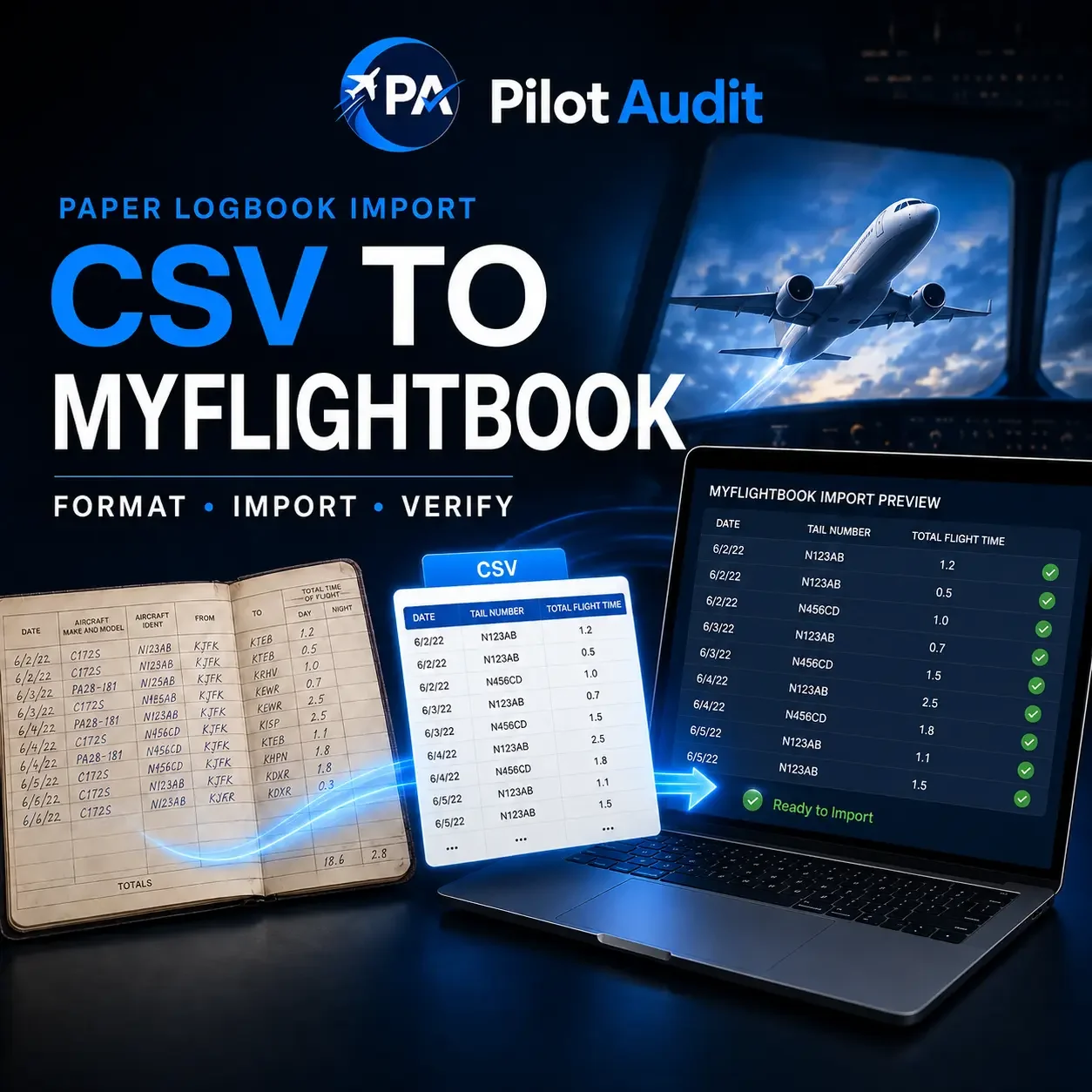
This guide explains how to import a pilot logbook CSV into MyFlightbook after converting a paper logbook. The platform supports bulk import of individual flights from a spreadsheet. The reliable process is to prepare the file with MyFlightbook’s recognized column names, confirm the aircraft in the account, preview every warning, import the flights once, and then reconcile the new totals against both the CSV and the original paper records.
The three required flight fields are Date, Tail Number, and Total Flight Time. The first row must contain the column headings, the file must be saved as CSV rather than XLS or XLSX, and every imported flight needs to be associated with an aircraft.
This guide was checked against MyFlightbook’s official FAQ and CSV import-field reference on August 24, 2026. Those first-party sources—not forum posts or old third-party walkthroughs—control the software instructions below.
If your flights are still handwritten, begin with PilotAudit’s complete guide to converting a paper pilot logbook to digital. Pilots who do not want to transcribe and organize hundreds or thousands of entries themselves can use PilotAudit’s Professional Paper to Digital Pilot Logbook Conversion. We work from the records provided, preserve the supported information, and flag anything unclear rather than guessing.
MyFlightbook CSV Import: The Short Answer
To import a converted pilot logbook CSV into MyFlightbook:
Keep an untouched master copy of the converted spreadsheet and preserve the original paper logbooks.
If the MyFlightbook account already contains flights, download a current CSV backup before changing anything.
Make sure every aircraft used by the imported flights is available in MyFlightbook and is identified by its complete registration or the correct MyFlightbook aircraft identifier.
Put the column headings in the first row and use MyFlightbook’s recognized field names.
Include Date, Tail Number, and Total Flight Time for every flight.
Remove blank rows, repeated headings, page totals, amounts forwarded, and spreadsheet summary lines that are not real flights.
Save the import copy as CSV UTF-8.
Sign in to the MyFlightbook website and open the Import Flights page.
Upload the CSV and review the preview, aircraft matches, warnings, and errors before approving the import.
Import the file only once, then verify the flight count, date range, sample entries, aircraft classifications, and totals.
Do not upload a revised copy of the same new-flight CSV without first accounting for the flights already imported. MyFlightbook treats rows without its server-assigned FlightID as new flights, so importing the same historical file twice can create duplicates.
CSV Import or Starting Totals?
MyFlightbook supports two different ways to bring older paper time into an electronic logbook. Choose one method for a given period so the same time is not counted twice.
Import individual flights from CSV
Use the CSV import when the paper logbook has been converted entry by entry. Each flight remains searchable by date, aircraft, route, role, condition, and other imported fields. This is usually the more useful option for a career pilot who expects to prepare detailed applications, investigate discrepancies, or produce an entry-by-entry report.
Enter starting totals
If you only want to carry accumulated time forward and begin logging new flights electronically, MyFlightbook provides Logbook → Starting Totals. Its FAQ describes these as one or more catch-up flights used to capture earlier totals.
Starting totals are faster, but they do not reproduce the complete flight history behind those numbers. Do not import the historical flights and also create starting totals for the same date range. That would double-count the earlier time.
This article covers the full entry-by-entry CSV import.
Before You Import: Protect the Original Record
A large historical import should be easy to audit and, if necessary, unwind. Before editing the CSV:
Keep the original paper logbooks. The imported record does not replace original endorsements, signatures, corrections, or handwritten source entries.
Keep the untouched conversion spreadsheet. Make MyFlightbook-specific changes in a separate import copy.
Record the number of actual flight rows, excluding the header and any summary lines.
Record the first and last flight dates in the file.
Record the totals you expect to check after import, using the same cutoff flight and definitions.
If MyFlightbook already contains flights, identify the existing date range and check for overlap.
Download a current spreadsheet copy from Logbook → Download if the account already has data.
Name the files clearly. For example:
LastName_Paper_Logbook_Master.xlsx
LastName_MyFlightbook_Import_2026-08-24.csv
LastName_MyFlightbook_PreImport_Backup_2026-08-24.csv
The backup and the new import file serve different purposes. The backup preserves what was already in MyFlightbook. The import file contains the historical flights you intend to add.
If the converted record may later be used for an airline review, PilotAudit’s guide to paper versus digital logbooks for airline interviews explains why the searchable electronic record and the original signed books should be preserved together.
How to Format a CSV for MyFlightbook
MyFlightbook recognizes supported fields from the column headings. Unlike an importer that lets you drag any source column onto any destination field, most of the mapping work happens before upload: the CSV headings need to match MyFlightbook’s recognized names.
Put the headings in the first row
The first row must contain the column names. Do not place a title, pilot name, date range, blank row, or explanatory note above it.
Every heading must be unique, and no heading can be blank. Column order does not matter, so organize the spreadsheet in whatever sequence is easiest to review.
Include the three required fields
Every flight needs:
Date — the flight date in M/d/yyyy format, such as 8/24/2026
Tail Number — the complete aircraft registration or applicable MyFlightbook aircraft identifier
Total Flight Time — the total duration of the flight
Do not rename these to shorthand such as Flight Date, Tail, or Total and assume the importer will understand them. Using the labels in MyFlightbook’s official import reference removes ambiguity.
Use complete aircraft registrations
MyFlightbook matches a flight to an aircraft by the complete tail number. Include the country prefix—for example, the N in a U.S.-registered aircraft.
Do not let spreadsheet software remove leading zeros or turn an all-numeric registration into a date or number. Store aircraft identifiers as text when needed.
The optional Model column is useful when MyFlightbook cannot find the tail number because it helps identify the aircraft that needs to be added. It should contain the actual aircraft model identifier supported by the source record, not a guessed category.
Anonymous aircraft and training devices require additional setup. MyFlightbook supports anonymous-aircraft identifiers beginning with # and recognizes SIM for a training device, but the correct model—and, for a training device, the appropriate device level—still needs to be established. Set those records up deliberately rather than forcing multiple unrelated aircraft into a made-up registration.
Use MyFlightbook’s recognized core headings
In addition to the three required fields, commonly useful headings include:
Model
Route, or separate From and To columns
PIC
SIC
Dual Received
CFI
X-Country
Night
IMC
Simulated Instrument
Ground Simulator
Landings
FS Day Landings
FS Night Landings
Approaches
Hold
Comments
Use only the fields that are supported by the converted source record. An empty optional cell is acceptable; invented data is not.
MyFlightbook also supports many additional flight properties. If you import one, its full official property name must be used exactly. Do not create a near-match because the wording seems close. Check the current official import-field reference for the supported name and data type.
A practical starting header row is:
Date,Tail Number,Model,From,To,Total Flight Time,PIC,SIC,X-Country,Night,IMC,Simulated Instrument,Dual Received,CFI,Ground Simulator,Landings,FS Day Landings,FS Night Landings,Approaches,Hold,CommentsKeep only the optional columns that your source records actually support. The required Date, Tail Number, and Total Flight Time columns must remain.
Let the aircraft model drive aircraft characteristics
Do not create unsupported columns for high-performance, complex, turbine, category, or class time merely to reproduce a paper-logbook summary. MyFlightbook derives many aircraft characteristics from the aircraft model connected to each flight.
That makes the aircraft match especially important. A clean flight-time import attached to the wrong model can produce convincing but incorrect aircraft totals.
Keep routes and remarks separate
Use Route for the airports visited. If the converted file contains only a departure and destination, separate From and To columns are also recognized and MyFlightbook will combine them into the route.
Use Comments for the remarks that belong with the flight. Do not bury registrations, time categories, or route information in Comments when a structured field exists for that data.
Use decimal flight-time values consistently
For duration fields, use consistent decimal-hour values such as 1.2, 0.8, or 4.6. Keep numbers as numbers and remove units such as hrs or hours from the cells.
Do not mix decimal hours, clock times, and text in the same duration column. A value of 1:30 is not the same data representation as 1.5, even though both may be intended to describe 90 minutes.
If the paper logbook was recorded in hours and minutes, convert those values carefully before building the import file and keep the unmodified source transcription for comparison.
Use whole numbers for count fields such as Approaches and Landings. For Hold, MyFlightbook’s core-field reference uses Yes when the flight included holding procedures.
Include clock times only when the source supports them
MyFlightbook can import Engine Start, Engine End, Flight Start, and Flight End. Its official import reference specifies UTC date-and-time values for those fields. The FAQ also describes an option that attempts to convert local clock times to UTC, but warns that the process is fragile.
If a paper logbook does not contain reliable clock times, leave those fields out. Do not estimate Out, Off, On, In, engine, or flight times simply to make the imported record look more complete.
Handle landings logically
Landings is the total number of landings for the flight. It must be at least as large as the sum of FS Day Landings and FS Night Landings.
If FS Night Landings is greater than zero, MyFlightbook expects the flight to contain some night time. Do not use a full-stop night-landing column as a substitute for the total landing count.
Treat simulator time as a separate mapping decision
MyFlightbook provides Ground Simulator separately from Total Flight Time, PIC, and SIC. Do not automatically copy every simulator-session duration into Total Flight Time.
Preserve what the source record actually shows and confirm how the time should be categorized under the applicable rules and intended use. If the source is unclear, flag it for review instead of choosing the category that creates the most favorable total.
Do not invent FlightID values
FlightID is assigned by MyFlightbook. The import-field reference describes it as Flight ID, while the official bulk-edit FAQ identifies the exported column as FlightID. It is not a row number and it should never be created manually for a new import.
When a CSV has no MyFlightbook FlightID, its rows are treated as new flights. When you download an existing MyFlightbook logbook, the exported rows include server-assigned IDs. Those IDs allow a later re-import to update matching flights instead of adding new ones.
For an initial paper-logbook conversion, leave FlightID out unless the file was created from a current MyFlightbook download and you are intentionally updating those exact records.
Remove non-flight rows
Delete or exclude:
Repeated column headings
Blank rows
Paper page totals
Amount-forwarded lines
Running-total formulas
Grand totals
Notes that do not represent flights
Hidden duplicate rows
A deliberate starting-total or catch-up entry is different from a spreadsheet subtotal. Keep one only when it is intended to exist as an actual MyFlightbook record and its values are supported.
Save the import copy as CSV UTF-8
MyFlightbook does not import a native Excel .xls or .xlsx workbook through the flight CSV importer. Save the prepared sheet as CSV UTF-8. UTF-8 is especially important when names, locations, or remarks contain non-English characters.
A CSV contains one sheet. If the workbook has separate tabs for different years or logbooks, combine the intended flights into one reviewed import sheet or prepare separate, non-overlapping CSV files.
After saving, close and reopen the CSV. Confirm that:
Dates still use the intended format.
Tail numbers retain prefixes and leading zeros.
Decimal values have not changed.
Remarks and names display correctly.
No formulas, filters, or hidden rows produced unexpected values.
How to Import a CSV Into MyFlightbook
Use the MyFlightbook website for the bulk-import workflow.
1. Confirm the aircraft first
MyFlightbook’s official import sequence begins with the aircraft because every flight must be associated with one.
Review Aircraft → My Aircraft and confirm the registrations used by the CSV. Check that each registration is connected to the correct model. Add or correct aircraft only when the source records support the change.
If the CSV contains many aircraft, the import preview will help identify registrations that are missing, but it should not be used as permission to accept the first suggested model without checking it.
2. Open Import Flights
Sign in to MyFlightbook on the web and open the Import Flights page from the Logbook area. Select the prepared CSV file.
If MyFlightbook says it cannot find a Date column, stop and inspect the file. The most common official causes are:
The file is still XLS or XLSX rather than CSV.
The heading row is not the first row.
The CSV uses a semicolon as its list separator while the browser locale expects a comma, or the reverse.
Do not rename an unrelated column to Date merely to get past the message. Correct the structure of the file.
3. Review the preview before importing
MyFlightbook previews the data and reports potential errors before anything is added. Use that preview as a preflight check, not as a formality.
Confirm:
Every intended row is recognized as a flight.
Dates fall in the expected year and sequence.
Tail numbers match the intended aircraft.
Missing aircraft are identified and resolved correctly.
Total, PIC, SIC, cross-country, night, instrument, dual, simulator, and landing values appear in the correct fields.
Optional blanks receive only acceptable defaults. MyFlightbook says blank optional fields may be assigned default values, so review the result rather than assuming every blank will remain blank.
Remarks and routes are readable.
No page-total or heading rows appear as flights.
The CSV date range does not unintentionally overlap flights already in the account.
Rows in a brand-new historical CSV without FlightID values will be added as new flights. For a bulk edit of flights already in MyFlightbook, the official FAQ says every intended edit should display an update indicator—not an add indicator. If a supposed update displays as an addition, stop before importing or you may create duplicates.
4. Resolve every material error
Fix structural problems in the import copy, save it again as CSV UTF-8, and upload it for another preview. Do not approve a large file while assuming the errors can be cleaned up quickly afterward.
Pay particular attention to:
Required values that are missing
Unknown or mismatched aircraft
Dates interpreted incorrectly
Time fields containing text
Full-stop landings that exceed total landings
Night landings without night time
Duplicate rows
Rows from a date range already stored in MyFlightbook
If a warning identifies a genuine uncertainty in the source record, return to the paper page or flag it for pilot review. Do not guess merely to obtain a clean preview.
5. Import the file once
When the preview matches the source and the warnings have been resolved, approve the import.
Wait for the process to finish before opening another tab or uploading the file again. Then verify the result before making bulk changes or importing another date range.
How to Verify a MyFlightbook CSV Import
An accepted import is not automatically an accurate import. Complete these checks before relying on the new totals.
Check the boundaries and completeness
Confirm:
The first expected flight is present.
The last expected flight is present.
The imported date range is correct.
The number of new flights matches the intended CSV rows.
There are no repeated headers, blank flights, subtotal lines, or duplicate date ranges.
Several flights from the beginning, middle, and end agree with the paper source.
For each sample, compare the date, aircraft, route, total time, applicable categories, landings, approaches, and comments.
Run Check Flights
Under Logbook → Check Flights, select Logged Time Issues. MyFlightbook says this check can identify potential logging issues such as a missing decimal that makes a time value unusually large. A warning is a reason to investigate, not proof that the flight is wrong.
Compare each material result with the original paper entry and the conversion spreadsheet. Correct only what the supporting record justifies.
Verify the aircraft models
Review the aircraft created or matched during import. Because MyFlightbook derives many totals from aircraft characteristics, a wrong model can affect single-engine, multi-engine, turbine, category, class, and other experience reports even when the time values imported correctly.
Check unfamiliar, anonymous, employer, military, and training-device records especially carefully.
Reconcile the totals
Use the same ending flight and cutoff date in MyFlightbook, the CSV, and the paper record. Compare at least:
Total Flight Time
PIC
SIC or co-pilot time
Cross-country
Night
Actual instrument
Simulated instrument
Dual received
Instructor time, when applicable
Ground simulator or training-device time
Day and night landings
Aircraft-specific totals important to your application or records
Do not force one total to equal another without finding the reason for the difference. A mismatch can come from a missing row, duplicate import, wrong aircraft model, incorrect field heading, source arithmetic error, category difference, or rounding method.
MyFlightbook uses per-minute math by default and offers a preference for hundredths-of-an-hour math. Pilots who record time to hundredths may see small differences if the calculation preference does not match the source method. Investigate the actual entries and settings rather than inserting an unexplained adjustment.
PilotAudit’s guide to reconciling paper and digital pilot logbook totals provides a page-by-page method for locating the first point where two records separate.
Download a post-import backup
Once the record passes review, download a new MyFlightbook CSV and store it separately. Include the completion date in the filename.
That downloaded file now contains MyFlightbook’s server-assigned FlightID values. Preserve them. They are what allow a future bulk edit to update the corresponding flights rather than adding another copy.
Common MyFlightbook CSV Import Problems
MyFlightbook cannot find the Date column
Likely cause: The file is XLS/XLSX, the heading row is not first, or the CSV separator conflicts with the browser locale.
Fix: Save the correct sheet as CSV UTF-8, move the headings to row one, and make the operating-system and browser locale settings consistent.
Aircraft are missing or assigned to the wrong model
Likely cause: The CSV uses shortened registrations, omits the country prefix, or does not provide a useful Model value for an unknown aircraft.
Fix: Use complete registrations, verify the aircraft under Aircraft → My Aircraft, and confirm the model against the source record before importing.
Category or turbine totals are wrong
Likely cause: Flights were attached to an incorrect aircraft model. MyFlightbook derives many characteristics from the aircraft rather than from separate time columns.
Fix: Check the registration-to-model relationship and re-run the relevant totals after correcting supported aircraft information.
The import creates duplicate flights
Likely cause: The same new-flight CSV was imported more than once, or its date range overlaps flights already in the account.
Fix: Stop importing. Download the current record, identify the exact duplicate batch, and use MyFlightbook’s official bulk-delete or editing tools carefully. Do not create negative or offsetting flights to hide the duplicates.
A revised CSV adds flights instead of updating them
Likely cause: The file does not contain valid MyFlightbook-assigned FlightID values.
Fix: For a bulk edit, start from a CSV downloaded from MyFlightbook. Retain its FlightID column, edit only recognized fields, and confirm the preview shows update indicators rather than add indicators. Never assign FlightID values yourself.
Times or totals are slightly different
Likely cause: The source uses hundredths while MyFlightbook is applying per-minute math, or the CSV contains inconsistent decimal conversions.
Fix: Confirm the source values and MyFlightbook’s calculation preference. Trace the difference to individual flights before making any adjustment.
Remarks display incorrectly
Likely cause: The file was saved with the wrong text encoding or a spreadsheet altered characters during export.
Fix: Return to the untouched source, save a fresh import copy as CSV UTF-8, and preview the affected rows again.
What If You Need to Correct Many Imported Flights?
Do not simply edit the original conversion CSV and upload it again. Without valid MyFlightbook FlightID values, the revised rows will be treated as new flights.
For a supported bulk edit:
Download the current CSV from Logbook → Download.
Preserve the FlightID column exactly as exported.
Remove rows that are not being changed when practical.
Edit only fields recognized by MyFlightbook.
Save the file as CSV.
Re-import it and confirm every intended record displays an update indicator, not an add indicator.
Stop if any intended update appears as a new flight.
If the import exposed broader total or category questions, PilotAudit’s Professional Pilot Logbook Audit reviews customer-provided totals, categories, dates, aircraft, routes, duplicate or missing information, and carry-forward issues. Questions are flagged for the pilot rather than silently changed.
Frequently Asked Questions
Can MyFlightbook import a CSV pilot logbook?
Yes. MyFlightbook supports bulk import of individual flights from a properly structured CSV. Each flight requires Date, Tail Number, and Total Flight Time, and the file is previewed before the import is approved.
Can MyFlightbook import an Excel spreadsheet?
Not through the flight CSV importer in its native XLS or XLSX format. Open the intended sheet and save an import copy as CSV UTF-8.
What columns are required for a MyFlightbook import?
The required columns are Date, Tail Number, and Total Flight Time. Other recognized fields can be added when they are supported by the source record.
What date format does MyFlightbook require for CSV import?
MyFlightbook’s official import-field reference lists the flight Date in M/d/yyyy format, such as 8/24/2026. Use that format consistently throughout the import file.
Can MyFlightbook import a paper logbook directly?
Not from handwritten pages. The flights must first be entered manually, converted into a structured CSV, or represented through MyFlightbook’s Starting Totals workflow.
Should I use a CSV import or Starting Totals?
Use CSV import when you have individual historical flights and want them searchable in MyFlightbook. Use Starting Totals when you only want to carry accumulated categories forward. Do not use both for the same time period.
Why did MyFlightbook duplicate my flights?
A new CSV without valid MyFlightbook FlightID values is treated as new data each time it is imported. Uploading it twice can therefore create two copies of the flights.
Can I make up FlightID values to prevent duplicates?
No. MyFlightbook assigns FlightID values on its server. To update existing flights in bulk, begin with a CSV downloaded from MyFlightbook and preserve the assigned IDs.
Can PilotAudit prepare a MyFlightbook import file?
Yes. PilotAudit can convert the entries shown in paper logbooks into a structured spreadsheet and, when requested, format supported fields for a MyFlightbook CSV import. Unreadable or unsupported information is flagged for the pilot instead of guessed.
Should I keep the paper logbooks after importing them?
Yes. Keep the original books and a complete scan. The MyFlightbook record is easier to search, total, back up, and print, but it does not replace original handwriting, instructor signatures, endorsements, or source corrections.
The Bottom Line
A dependable MyFlightbook CSV import begins before the Upload button. Use MyFlightbook’s recognized headings, include Date, Tail Number, and Total Flight Time for every flight, match complete registrations to the correct aircraft models, and remove every row that is not an actual flight.
Then preview carefully, import once, and compare the finished record with both the converted spreadsheet and the paper source. That process prevents the most expensive migration problems: missing flights, duplicate flights, incorrect aircraft totals, and clean-looking numbers that do not match the records behind them.
That is also the standard PilotAudit applies to paper-to-digital work: preserve what the source says, organize it for the destination platform, flag uncertainty, and verify the completed record. If you need help preparing the file, use PilotAudit’s paper-to-digital pilot logbook conversion service. If the next step is an airline interview, continue with the source-checked guide to printing a MyFlightbook logbook for an airline interview.
Pilots choosing LogTen instead can follow the companion guide to importing a pilot logbook CSV into LogTen Pro.
PilotAudit is an independent pilot-logbook service and is not affiliated with, sponsored by, or endorsed by MyFlightbook. Product names belong to their respective owners. Software features and menu paths can change; use the linked MyFlightbook FAQ and import-field reference for the latest product guidance.
